
Closing the till takes two separate actions that should not be confused: each staff member closes their own session, then the manager runs the Z, which settles the accounts for the whole business.
Video coming soon
Cashier session or Z: the difference
- A session belongs to one staff member. It opens with their first PIN, when they enter their Cash float and tap Open the till. They close it themselves: ☰ menu, Close my session, then Confirm closing. The screen tells them what to hand over (Cash to hand back). The till itself stays open for everyone else.
- The Z settles the accounts for the whole business. It covers everything since the previous Z, not since midnight. One Z after lunch service, another after dinner: that is expected, and each one has its own number.
1Open the closing
On the staff selection screen, tap Close in the top right corner, then enter your code. The Z is reserved for the Owner and the Manager; another role can be given that permission under Roles. Your code unlocks the device for fifteen minutes: you will not be asked for it again to close.

2Check the summary
The Summary step shows the takings since the last closing, the expenses and the team. Below them, what is left to sort out:
- a session still open: the Close button closes it for the staff member who left without doing so;
- Open table bills, to be paid first;
- Sales waiting to go through, taken while the internet was down.
These three block the Z; a time clock entry left open is only a reminder. When the screen says Everything is in order, tap Continue.
3Count the drawer
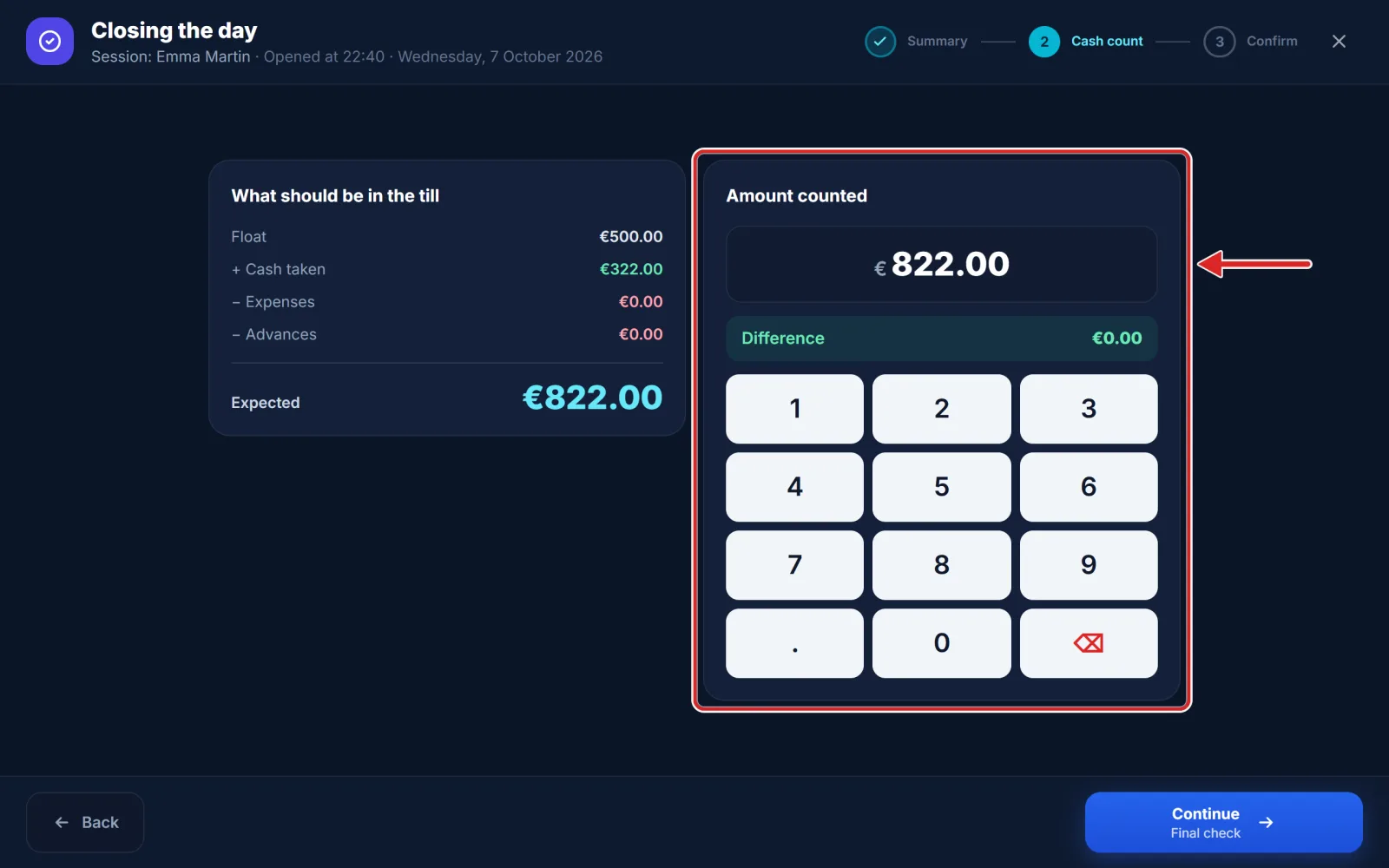
The screen breaks down What should be in the till: the Float entered when the sessions opened, plus the cash taken, minus expenses, advances and anything paid out of the till. The result is the Expected amount.
Count the notes and coins, then type the total in Amount counted: the Difference shows straight away. If there is one, you are offered a note, such as "wrong change given". Tap Continue.
4Confirm the Z
The Final check sums up the takings, expected and counted cash, the difference and the payment methods. Tap Close the day: the Z report prints, with its number.
The till reopens straight away: the next shift takes payments as usual, and their takings go into the next Z. Reprint Z#… prints the same Z again if the paper jammed, and New closing gets the next one ready.

Tip — Did your fifteen minutes run out while counting? The till asks for your code again without losing the amount counted. And Close without a Z leaves the screen without saving anything.
5Find your Z reports in the back office
Open Sales, Z closings tab: every Z is listed with its date, who ran it, its tickets, its sales, the amount counted and the difference. Details opens the Z ticket exactly as it came off the roll, and Print makes a copy. A ticket voided later does not change a Z's figures: the Z is then marked Corrected.
What the Z report prints, section by section, is set under Settings › Z reports.
