
A device is a tablet or a computer that works for your business. You pair it once, with a 6-digit code, and it stays recognised from then on, even with no internet connection.
Video coming soon
1Add a device in the back office
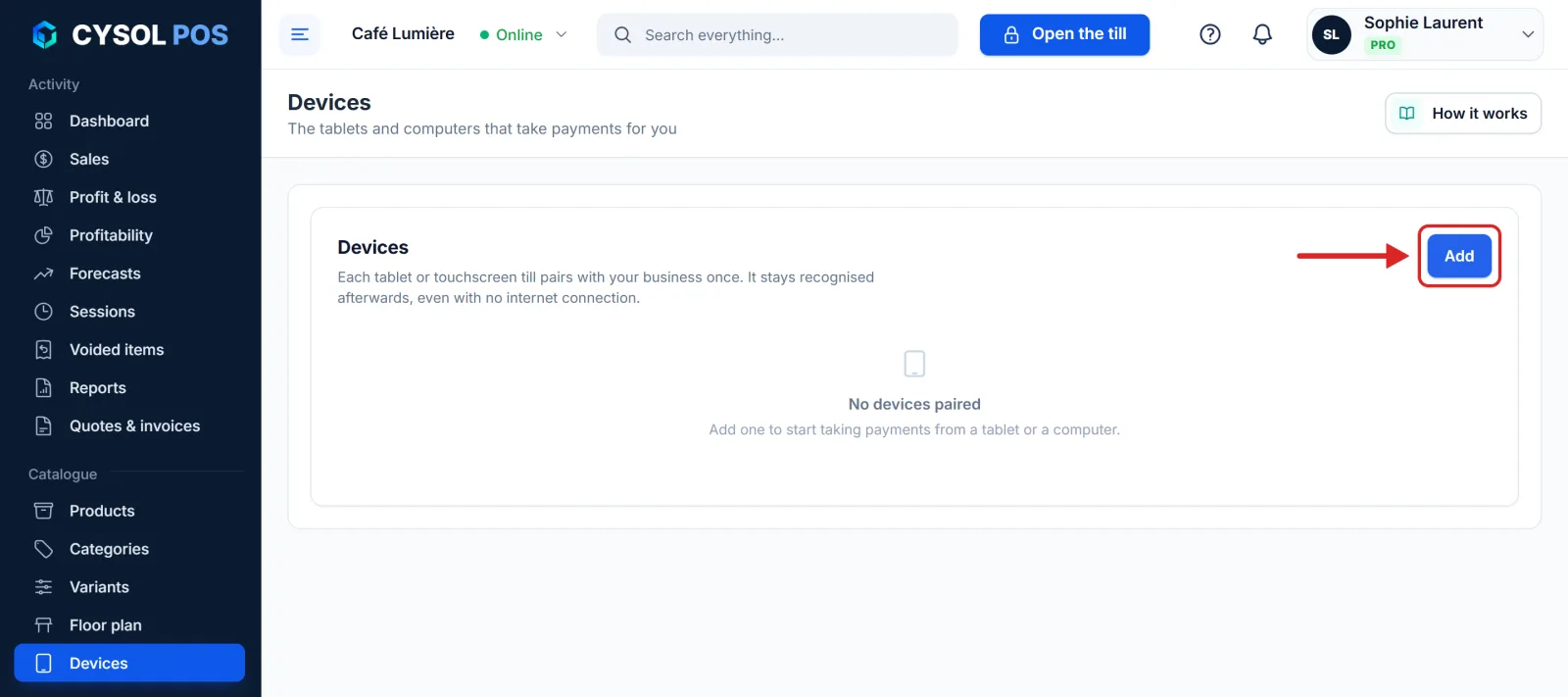
Open Catalogue › Devices and click Add. For your first device, the code appears straight away: the device is named for you, and you can rename it later with Edit. For the next ones, Add first asks for a name that says where the device stands, such as "Counter"; then click Create. The name is optional: without one, the device gets a number.
Adding a device, making a new code for it or deleting it is up to the owner, unless they give that right to someone else in Team › Roles. The manager chooses who enters their code on each till, and opens or closes the team phones.
2Keep the code in sight
The box gives the three steps to do on the device. Open the till: its address, the one ending in "/pos", is written just below, and the Open the till button opens it in a new tab. Tap I already have a CYSOL account. Then type the six-digit code: a countdown shows how long it stays valid, 1 hour to start with.
Ran out of time? Click New code on the device's line.
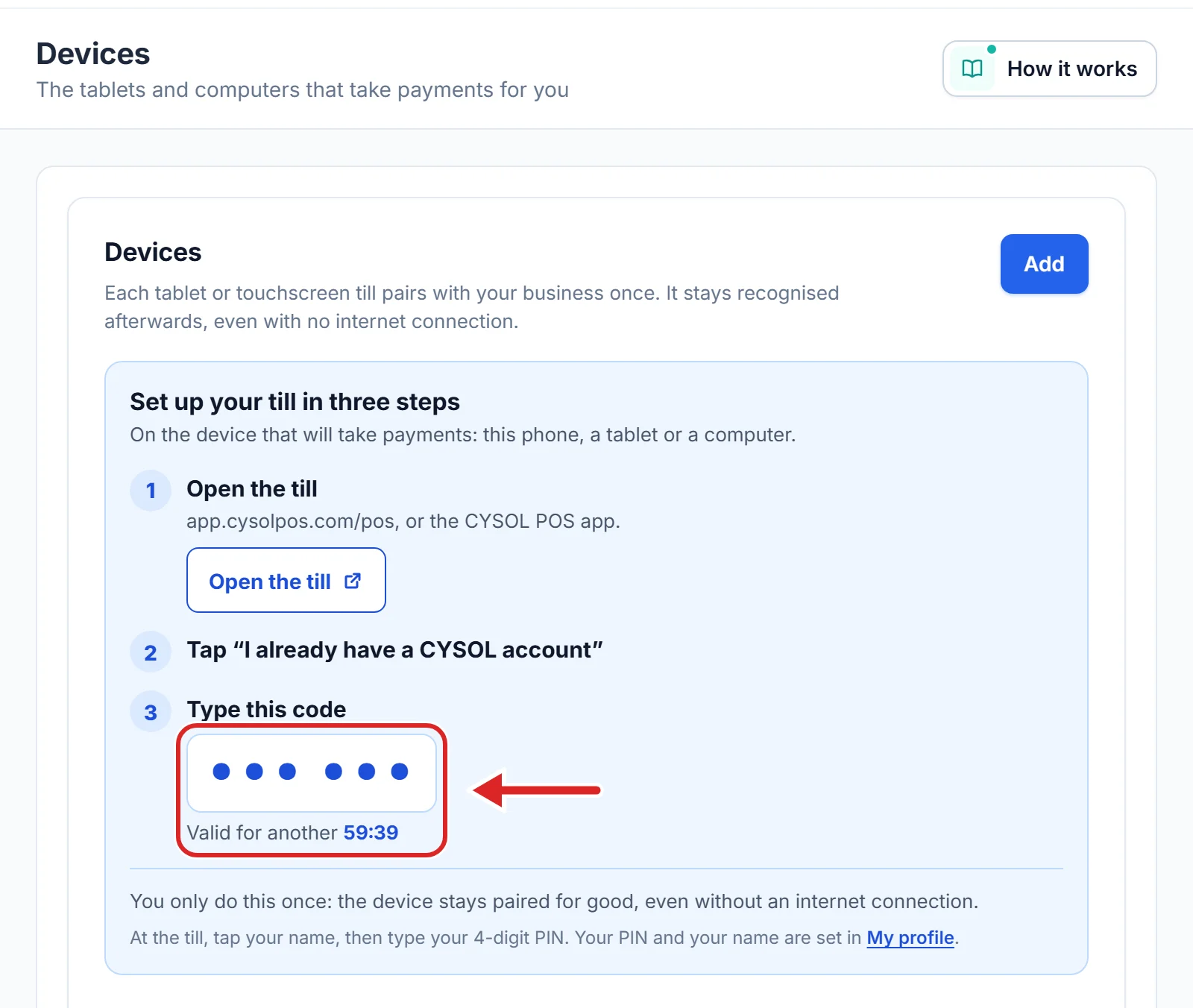
The code is hidden in this picture: yours appears in that spot, as digits.
3On the device, open the till and type the code
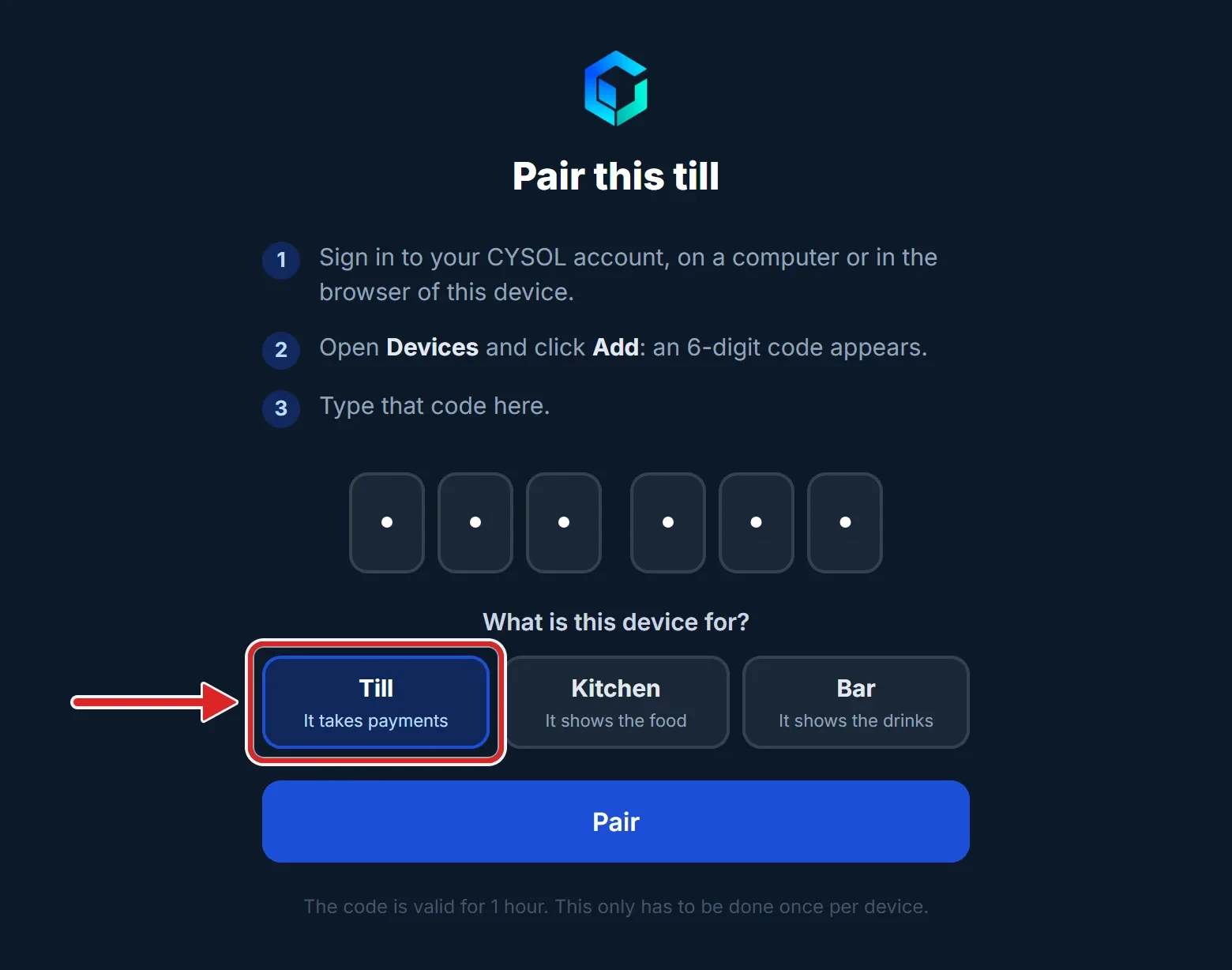
On the tablet or computer, open the till address in the browser. The Pair this till screen appears: type the six digits.
4Say what this device is for
Right below, the question What is this device for? offers three choices: Till, Kitchen or Bar. To take payments, tap Till, then Pair. The screen confirms Till paired along with your business name, so you know you did not type someone else's code.
Tip — In the CYSOL POS app (Android, iPhone, iPad), this question does not appear: the app is always a till. For a kitchen or bar screen, install the CYSOL Kitchen & Bar app.
5Check the device in the list
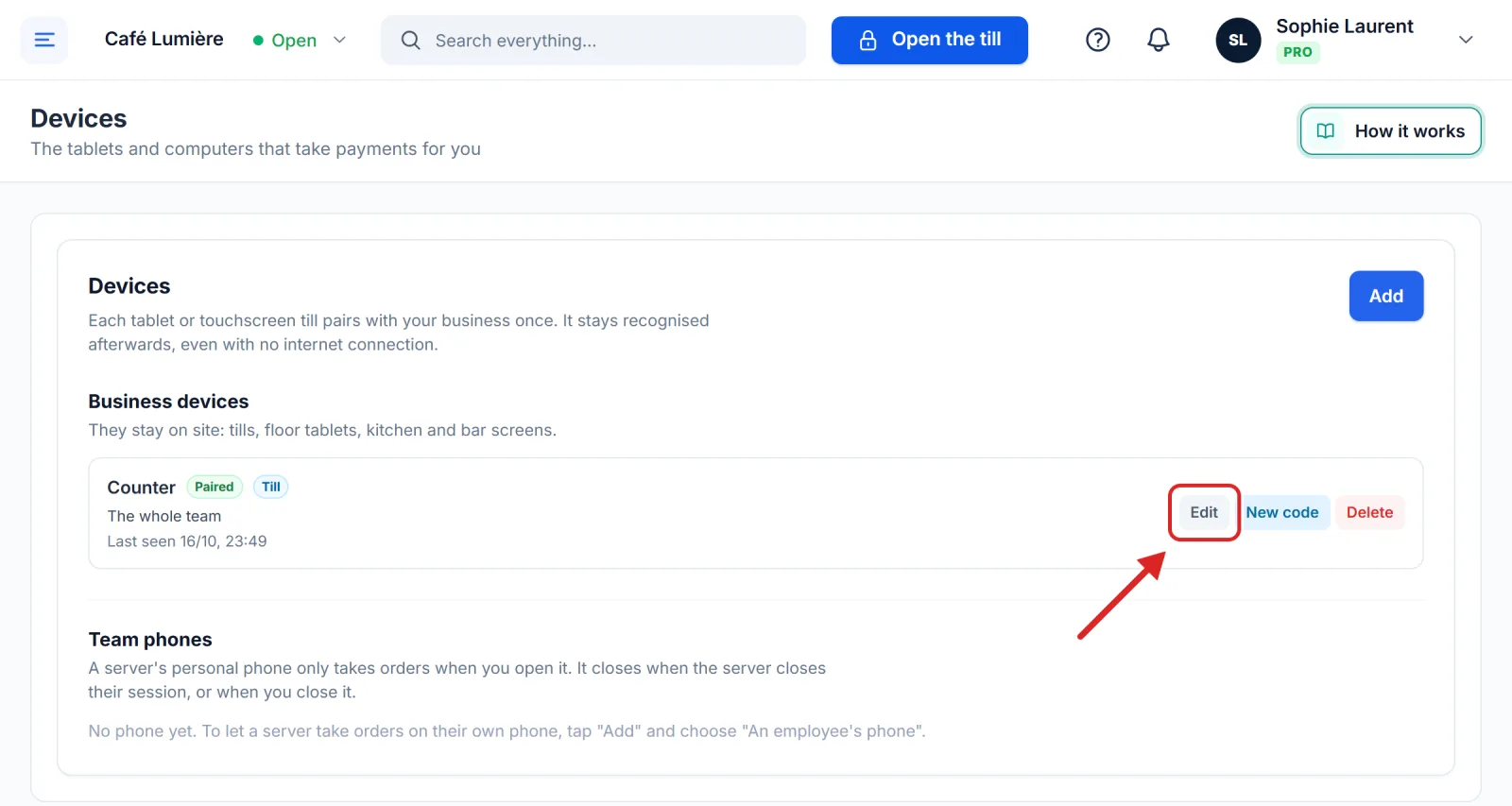
Back in Devices, the line now reads Paired, with its role, under Business devices. Edit changes everything in one place: its name, its role — a tablet moving to another room, with no new code — and the staff shown on the till: The whole team, or only the employees you tick. Delete removes it for good.
A server's phone
A server can take orders on their own phone. Click Add, choose An employee's phone, then their name: the phone paired with this code only shows them, with no Z report, expenses or advances.
It only takes orders when you open it, with the switch on its line under Team phones, or from the Open / Closed status at the top of the screen. It closes when the server closes their session, or when you close it; Close all closes them all at once, and the Z report offers it too. Closed, it can only show its last closing report.
Tip — Every kitchen ticket and every receipt says which device the order was taken on: "Taken on: Personal phone", or the till's name.
How many devices?
The Starter plan includes one device, free for life. To switch to another device, click New code on its line: the old device is cut off at once, the new one keeps its name and settings. The Pro plan lets you pair as many devices as you like, and adds the kitchen and bar screens: same Add button, same code, only the address you open and the role you pick change.
Tip — On a tablet, bookmark the till address, or install it from the browser menu ("Install app" or "Add to Home screen", depending on the device): it then opens full screen.
Important — The device is recognised by its browser. If you clear the browser data or switch to another browser, you will have to pair it again.