
Your bread, your cakes and your drinks don't always carry the same VAT rate. The same product can also change rate depending on whether it is eaten in or taken away. Set these rates once: the till applies the right one to every line of the ticket.
CYSOL never suggests a rate. Enter the ones that apply to your business and, if in doubt, ask your accountant. The figures in this article are only examples.
Video coming soon
1Give each category its rate
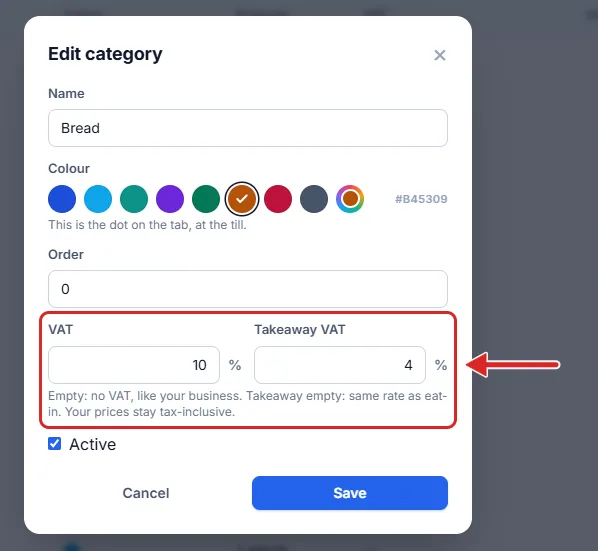
Open Categories, then click the category to set. The Edit category window has two boxes:
- VAT: this category's rate. Left empty, your business rate applies, set in Settings, Business section.
- Takeaway VAT: fill it in only if the rate changes when the customer takes the order away. Left empty, it is Same as eat-in.
For example, a bread category at 10% eat in and 4% takeaway. Click Save. The category list then shows a VAT column.
2A product that is an exception
Almost everything is set on the category. For a single product with a different rate, open its card in Products: its two boxes, VAT and Takeaway VAT, are empty and show its category's rate in grey. Fill in only what changes. A rate of 0 means "no VAT" for that product.
3At the till: eat in or takeaway
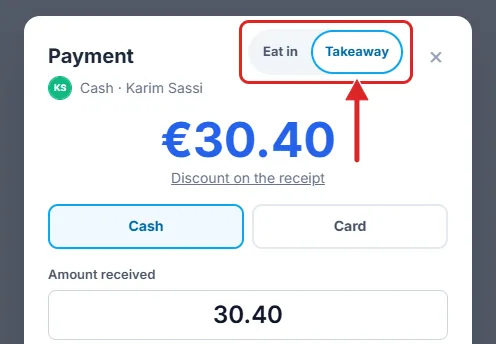
As soon as a takeaway rate is set, the Payment window shows Eat in and Takeaway next to its title. Tap Takeaway when the customer takes the order away: every product takes its takeaway rate. The same choice can also be made at the top of the ticket, before taking payment.
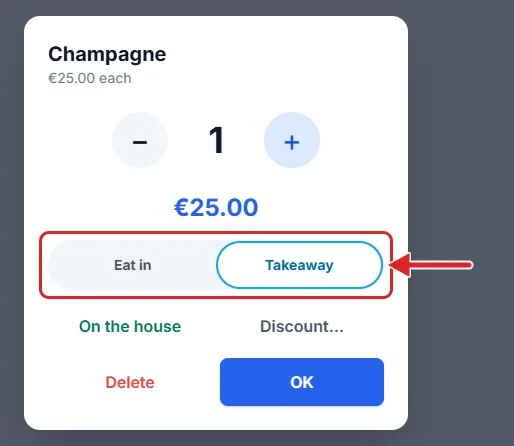
The customer drinks a coffee in and takes a baguette away? Tap the baguette line in the ticket, then Takeaway in its card. The line shows Takeaway in blue: only that line takes the takeaway rate.
A table is always served eat in. Orders received from delivery platforms take the takeaway rate.
4On the ticket, the Z report and the invoice
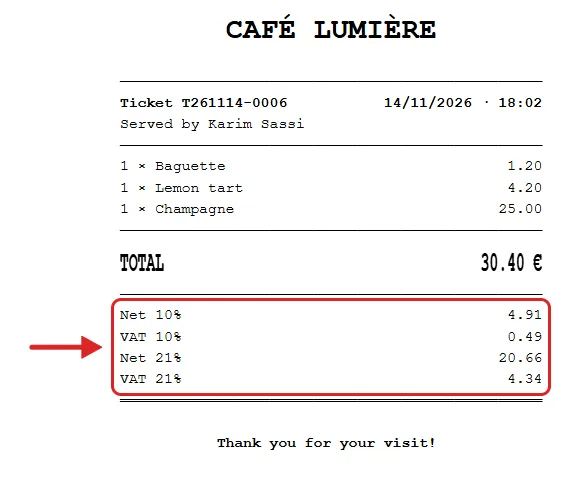
When the VAT breakdown box is ticked, in Settings, Printed ticket section, the ticket prints the net amount and the VAT of each rate. The Z report adds up VAT rate by rate, and the invoice made from My tickets shows the same breakdown.
Tip — Importing your products from Excel? The template has two optional columns, VAT and Takeaway VAT, for the products that are exceptions.
Important — The rate is recorded on each sale when it is paid. Changing it only affects the next tickets, never the ones already paid.