
A small or large cappuccino, with whole or oat milk: these are variants. By the end of this guide, you will know how to create a choice list with its extra prices, offer it on your products, and take a choice off sale when it runs out.
Video coming soon
1Create a choice list
Open Catalogue › Variants and click + New variant. A list is created once and serves as many products as you like: "Milk" works for the cappuccino, the latte and the hot chocolate.
Give it a Name, then answer the question The customer picks:
- An ingredient, an extra: each choice adds its price to the product's price, and can come out of your stock. This is the answer for a milk, how a dish is cooked, extras — and for a small or a large size.
- A size, a colour: each size becomes a separate version of the product, with its own stock, like a shoe size or a T-shirt in S, M, L. A size can also add its price: L +3.00 on a 10.00 product sells at 13.00.
2Set its boxes
- An answer is required: the till does not add the product to the ticket until the customer has chosen. Tick it for a size or for how a dish is cooked.
- The customer can take several: for extras, cheese and sauce on the same sandwich. Without it, tapping a choice replaces the previous one.
- Show on the QR Menu: untick it for a list like "No onion", which the customer tells the server. A required list where one choice changes the price is always shown.
- Shared variant: it comes into play when a choice runs out, see section 6.
For a size, only An answer is required and Shared variant are shown.
3Enter the choices and their price
Under The choices, write one choice per line: "Small", "Large". In the Price column, type what the choice adds to the product's price: 0 for Small, 0.50 for Large. + Add a choice opens another line.
Below the list, a sentence starting with At the till: does the maths for you, on a product that offers the list.
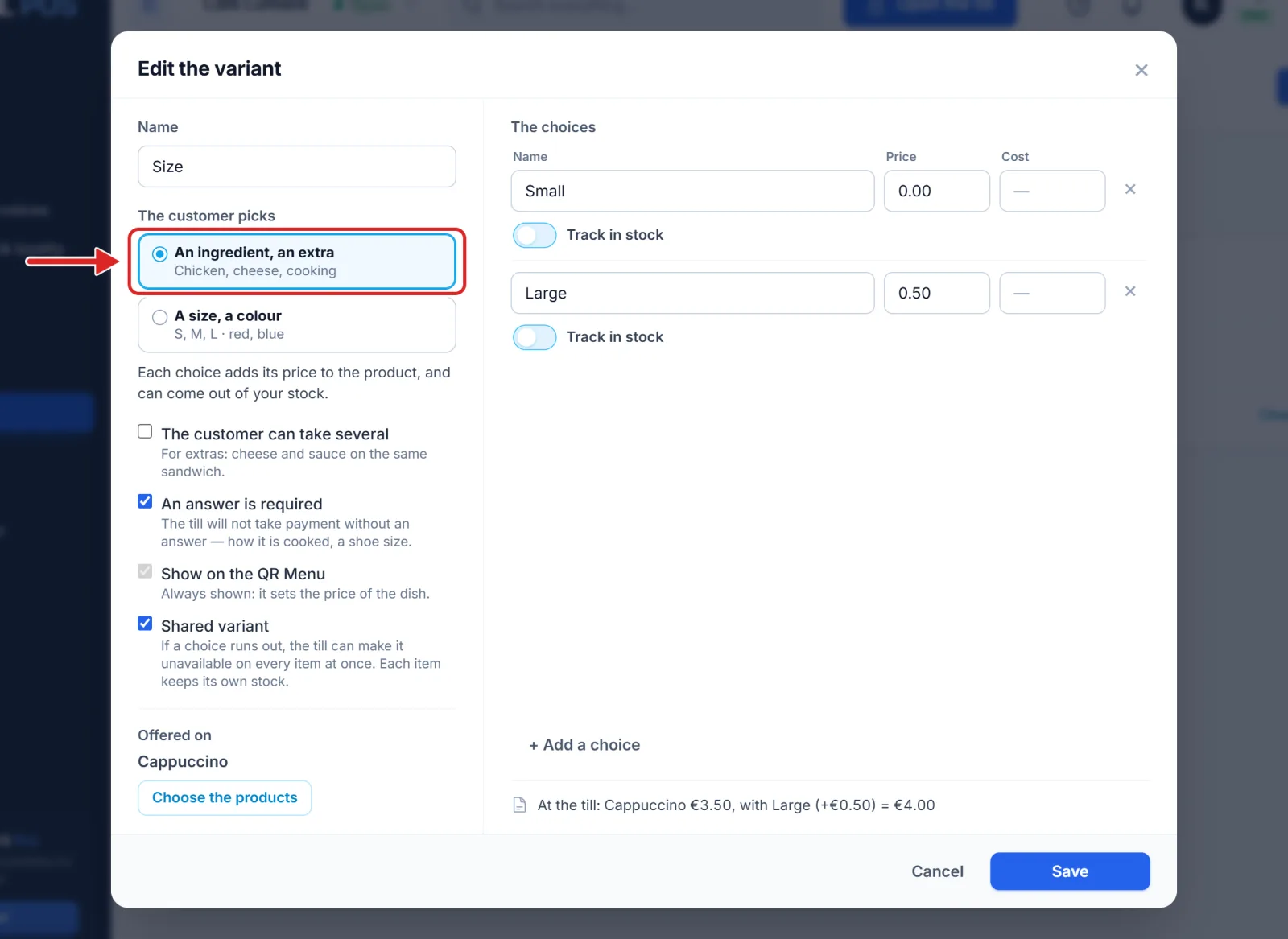
Tip — On Pro, the Track in stock switch, under a choice, links it to a product in your stock: each sale takes its portion out. See Track your stock.
4Say which products the till offers it on
Offered on tells you which products the list is attached to. Click Choose the products, tick "Cappuccino" — Search for a product… finds it fast — then Done. Finally, click Save. If something is missing, the reason shows in red next to the button, for example Give at least one choice a name.
A list offered on no product never asks its question: its card says so, Offered on no product. You can also start from the product: in Catalogue › Products, the Variants button at the end of its row opens a window where you tick the lists the till will offer for it.
5At the till
Tap a product that carries lists: a window opens with each of them. A required list has a red asterisk, the others are marked — optional, and each paid choice shows its extra. Tap the customer's choices, then Add. While a required list has no answer, the button stays greyed out and the reason shows in red, for example Choose: Size.
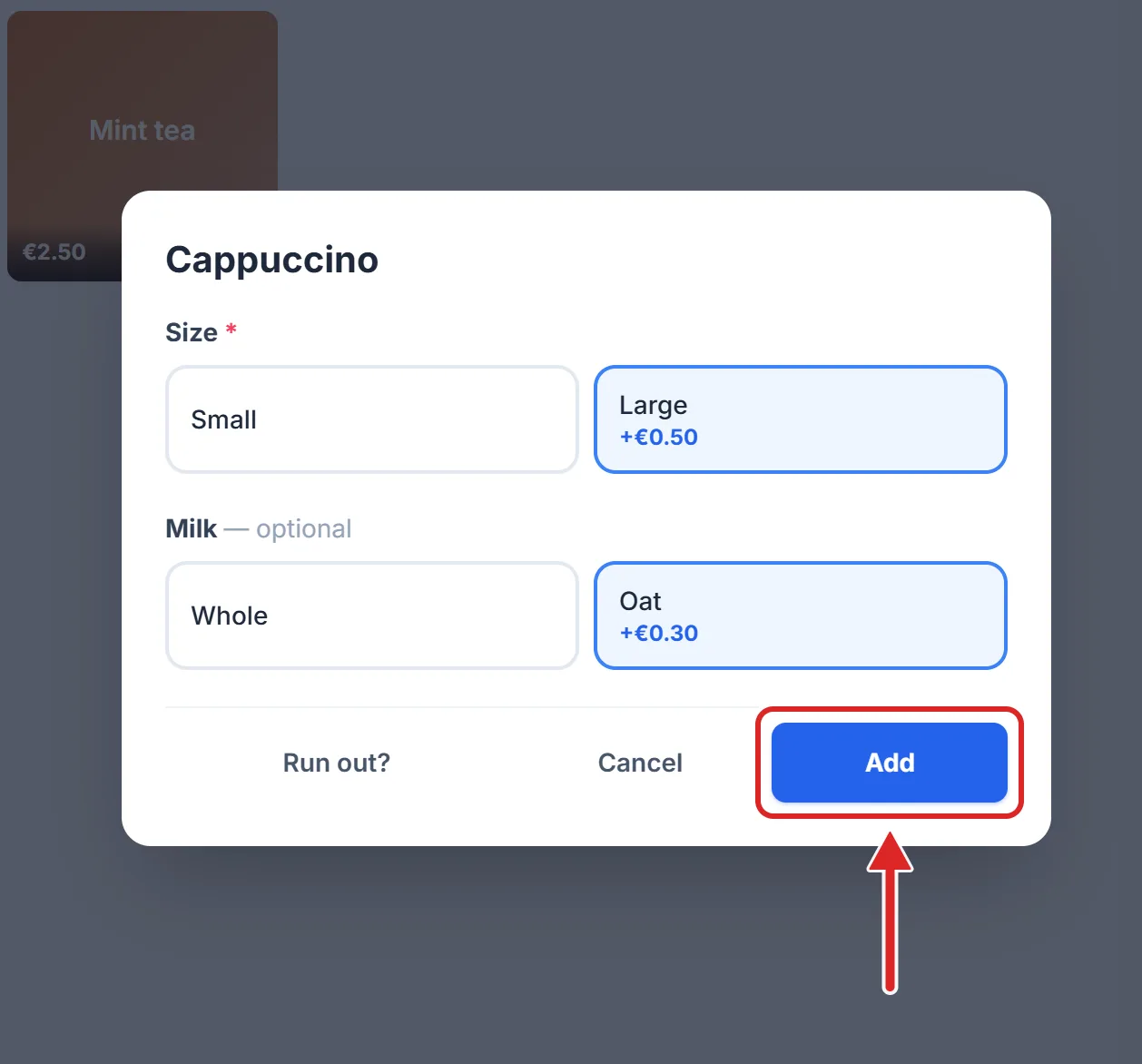
The product goes on the ticket at its price, plus the extras chosen. The choices follow it to the printed ticket and the kitchen docket: "Cappuccino — Large / Oat". A product with no list still goes on the ticket in a single tap.
6When a choice runs out
Out of oat milk? In the product's window, tap Run out?, then the choice that is missing. When the list is a Shared variant — ticked by default for an ingredient — and it is offered on several products, the till asks you:
- Here only: the choice is taken off this product only;
- Everywhere: it is taken off every product that offers the list, the latte and the hot chocolate included.
Otherwise, the till simply asks you to Confirm. Either way, the choice stays visible at the till, greyed out and marked Unavailable.
Run out? only shows for roles that have the Mark a product unavailable permission, ticked by default.
Important — Nothing comes back on its own. To put a choice back on sale, tap it at the till: it offers to make it available. A choice taken off everywhere can also be put back on sale in Catalogue › Variants, on its tag marked UNAVAILABLE: click Put back on sale.
Edit or delete a list
On the list's card, Edit reopens its window. The bin deletes it, after you confirm: it leaves the till and the products that carried it, and sales already made keep the detail of what was chosen.