
The QR Menu puts your menu on your customers' phones: they scan the code on their table and read your products, your prices and your photos. It is free, on Starter as on Pro. By the end of this guide, you will know how to generate your QR code, print it, choose what your customers see and, on Pro, offer your menu in several languages.
Video coming soon
1Generate your QR code
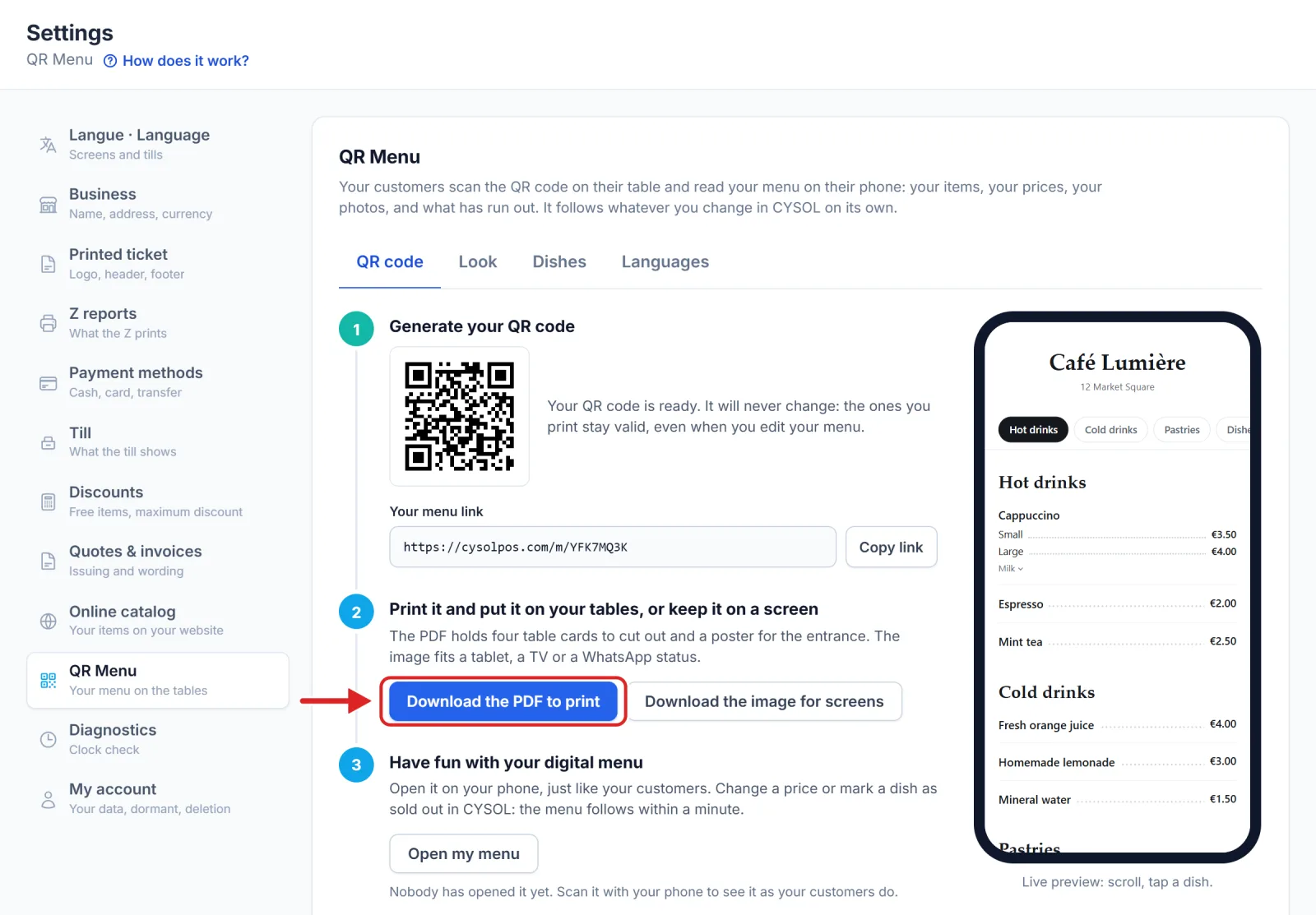
Open Settings, at the bottom of the menu, then the QR Menu section. In the QR code tab, click Generate my QR code: your menu is online, with your categories, your products and your prices. There is nothing else to set up.
The code shows up, with Your menu link just below it; Copy link copies it, for a message or your social media. This QR code never changes: the ones you print stay valid, even when you edit your menu.
2Print it, or show it on a screen
- Download the PDF to print: a page of four table cards to cut out, then a poster for the entrance or the counter.
- Download the image for screens: an image to show on a tablet, a TV or as a WhatsApp status.
Tip — Slip each card into a menu holder, or laminate it. Your prices may change: the code does not, and there is nothing to reprint.
3See what your customers see
Click Open my menu, or scan the code with your phone. On a large screen, a live preview also shows the page in a phone, to the right of the steps.
Your customers find your categories, your products with their price and photo, and the choices for each one: tapping a dish opens its details. A product that is never sold without a choice that changes its price — a Small or Large Cappuccino — shows one line per choice, at the full price. Change a price or mark a product as sold out in CYSOL: the menu follows within a minute.
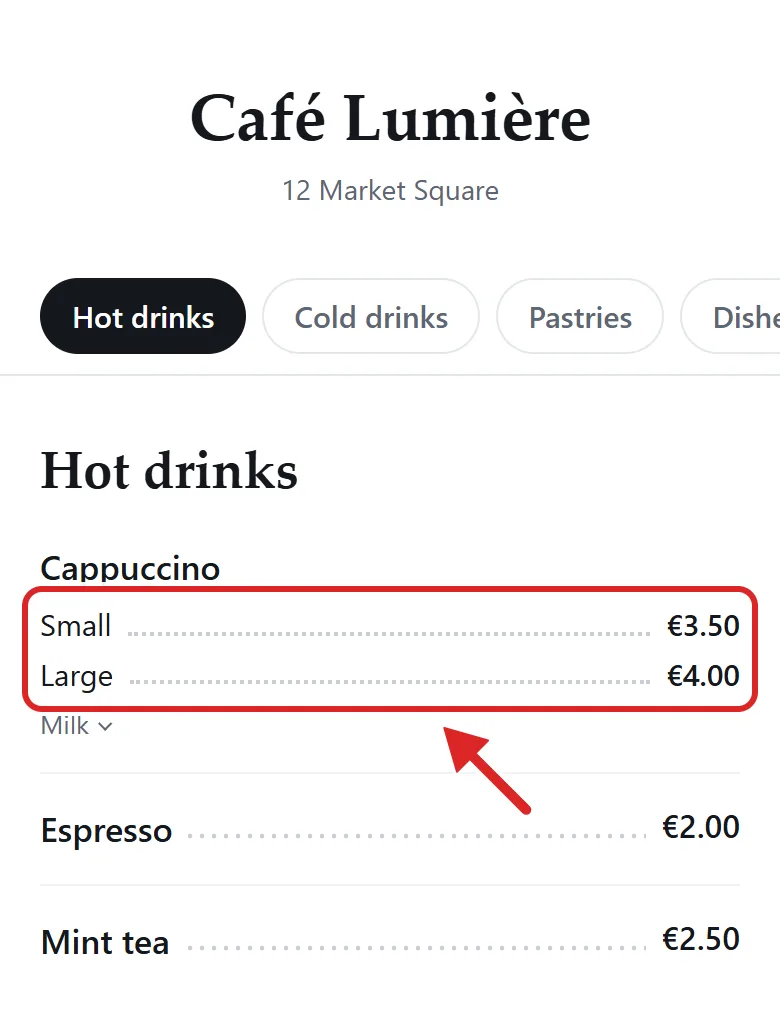
The menu follows your till: a product with Active (visible at the till) unticked does not show on it either. Your costs, your stock, your suppliers, your sales figures and your staff never appear on it. At the bottom, two discreet lines, "Powered by CYSOLPOS" and "Free for life": that is what keeps it free.
Under Open my menu, a counter tells you how many times your customers have opened it. The Show sold-out items switch decides the rest: on, your customers see them greyed out, marked "Sold out"; off, they disappear from the menu and come back on their own as soon as they are available again.
4Dress up your menu
Two tabs, next to QR code. The preview reloads after each change.
- Look: a Cover photo at the top of the menu, your Logo (the same one as on your quotes, invoices and tickets sent by email), a Style — Light, Bistro, Night or Colour — and a Colour for the tabs.
- Dishes: the place of each dish, Featured, Normal, Low-key or Hidden. A featured dish is shown large, at the top of the menu; a hidden dish leaves the menu but stays on sale at the till. Description and tags adds a sentence and tags such as Homemade or Vegetarian.
Tip — A list like "No onion" has no place on the menu: in Catalogue › Variants, untick Show on the QR Menu on that list. It is still offered at the till.
5Offer your menu in several languages
The Languages tab is part of the Pro plan, at €9.90 a month excl. tax: on Starter, it carries a padlock. If you have never had Pro, the 14-day free trial opens it too.
Under Extra languages offered, click the ones to add to yours, up to five. Each language shows how far its translation has got, and Review and correct opens its texts one by one: a text you rewrite is marked Corrected by you. Your customers then choose their language at the top of the menu.
With no language added, a customer whose phone speaks a different language from your menu sees a button that shows them how to have their browser translate it.
Take your menu offline
At the bottom of the QR code tab, Take my menu offline does just that, after you confirm: your printed QR codes show "This menu is not available". Put my menu back online switches it on again, and the same codes work again straight away.
Important — Taking the menu offline does not change its code. Do not throw your table cards away: they work again as soon as the menu is back.