
The To pay module shows, on one screen, what you still owe as of today. By the end of this article, you will know how to read it, add fixed costs such as rent or electricity, and mark a payment, saying which money paid for it.
Video coming soon
1Read what you owe
Open Management › To pay. The Outstanding tab starts with one big line, To pay as of followed by today's date, and the total. Below it, three lines, each with its own colour and subtotal:
- Staff wages: for each person, what they have earned to date, minus the advances given and what has already been paid. It is the same figure as the Balance owed in the Pay tab, under Team › Payroll.
- Suppliers: purchases recorded “to pay on …” that have not been settled yet, whatever their date.
- Fixed costs: this month's costs not yet marked as paid.
Click a line to see its details; click it again to close it.
2Add your fixed costs
Open the Fixed costs tab and click + New cost. The form has four fields:
- the Name: Rent, Electricity, Internet…;
- the Amount of each payment;
- Every: month, quarter, half-year or year;
- On the: the due day. For a quarter, half-year or year, In the month of sets the month it falls due.
Click Save. A cost that only starts later? Open Does this cost start later? and pick the date under From.
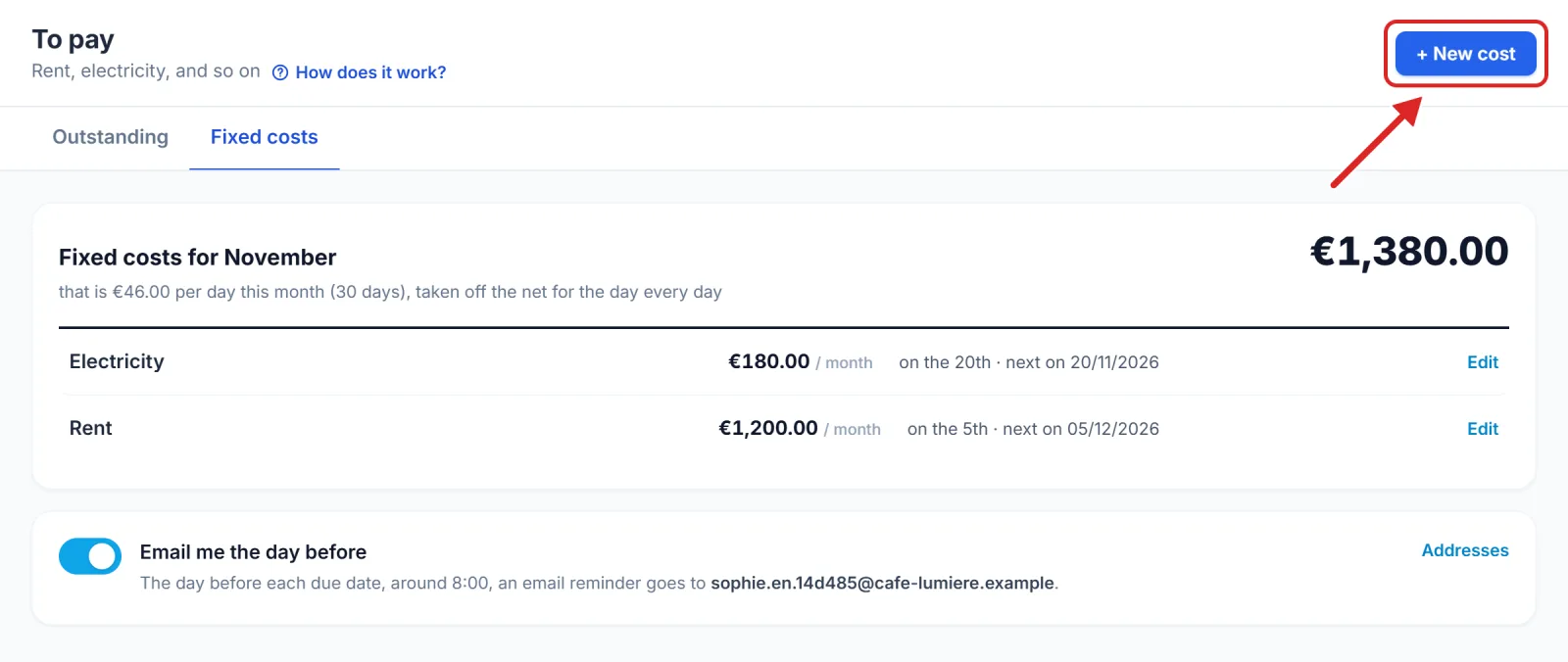
At the top of the tab, the big line gives this month's total fixed costs and what they weigh per day: the share that Reports takes off the net for the day, every day.
To change a cost, click its line or Edit:
- a new amount from a given date: open Has the amount changed? and set From; the past keeps the old amount;
- a cost that stops: End this cost, choose the Last day, then End.
Email me the day before sends a reminder in the morning, the day before each due date. The owner always gets it; Addresses adds others: a partner, the manager, the accountant.
3Mark a payment
In Outstanding, open the line and click Mark as paid next to what you have just paid. The box asks which money paid for it:
- cash from the till: the amount will leave the drawer at the next Z report;
- other funds: a transfer, a cheque… the drawer does not move.
A fixed cost or an invoice is paid in full. Wages can be paid in part: the box suggests what is still owed, and you correct the amount. The payment settles the oldest wages still owed first, and the rest stays to pay. Confirm with Mark as paid.
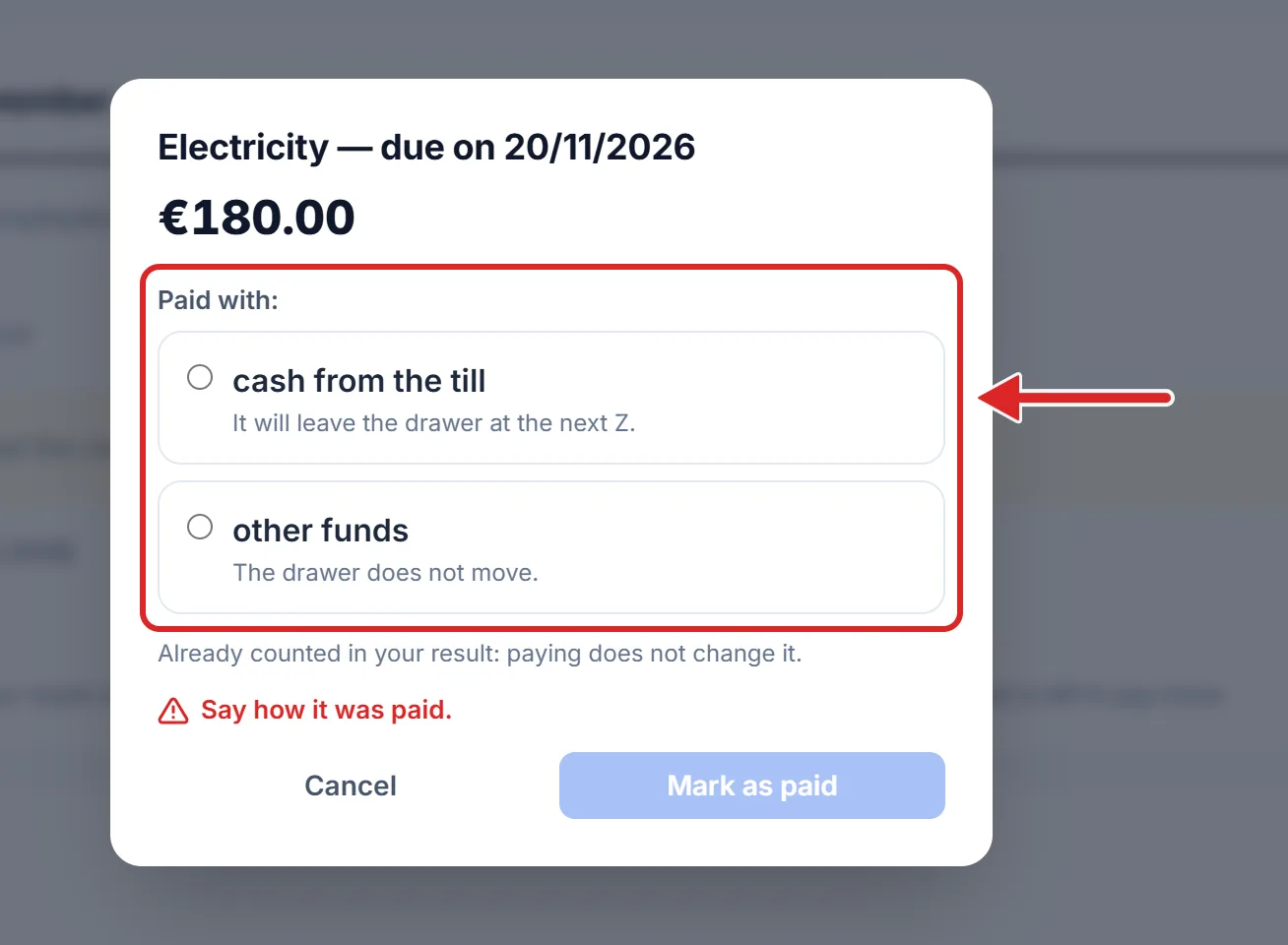
Important — Each fixed cost's share is already taken off the net for the day, every day: marking it as paid does not change it, and paid wages do not enter it either. A supplier invoice, on the other hand, counts in it on the day you settle it. Paid with cash from the till, the amount leaves the drawer at the next Z report.
4Undo a payment
Further down, Paid in the last 30 days lists each payment, with its date, the money used and who marked it. A mistake? Click Cancel, then Cancel the payment: the line is to pay again. If a Z report already counted this payment, it keeps its figures; the next one will not see it.